
FREE • NO SIGN-UP • RUNS IN YOUR BROWSER

Bulk Certificate Generator from Excel or CSV.

Design one certificate, add your list of names, and export one for every row as PNG, JPG or PDF. Your files stay on your device.

Launch Certificate Studio
No watermark. No account. Nothing is uploaded.
Example output
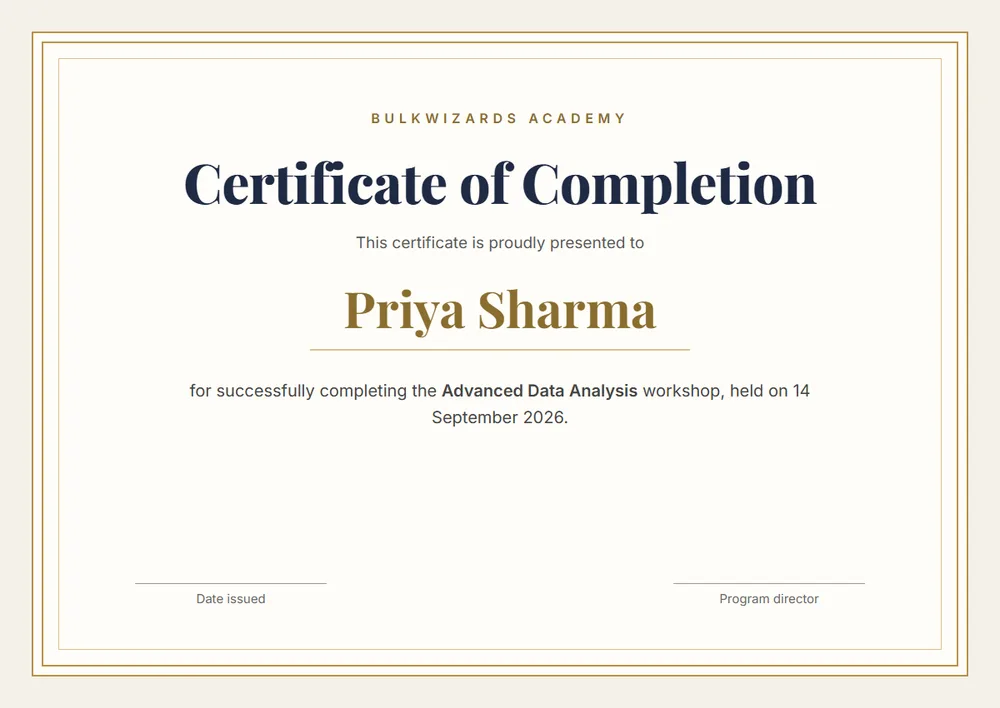
Example certificate of completion with a recipient name, course title and date, of the kind generated from a spreadsheet row
WHAT IT DOES

Built for lists of names.

Visual Template Designer

Drag text and photo fields onto your template, then set the font, size, colour and alignment for each.

Batch Rendering in the Browser

Every row in your list becomes a certificate. Choose the row range and watch the export log as it runs.

PNG, JPG or PDF Export

Export at 1x, 2x or 3x the template size, as separate files or one bundled PDF, at original size or A4.

Photo Matching

Match each person's photo to their row by filename, and fix any mismatch by hand.

CSV Import or Manual Entry

Upload a CSV saved from Excel or Google Sheets, or type your records into the data tab.

Private by Design

Your template, list and photos are processed on your device and are not sent to a server.

SIMPLE WORKFLOW

How it Works.

01

Upload Template

Import your PNG, JPG or PDF certificate design into the studio.

02

Map Data

Upload your CSV file and drag fields onto your design template.

03

Batch Generate

Choose your rows and format, then download the certificates as a ZIP or a single PDF.

Start Generating Now
One row = one certificate

Ready to issue your certificates?

Free, with no account and no watermark. Bring your template and your list.

Enter Certificate Studio

How to make certificates in bulk from Excel or CSV

Making certificates one at a time in a design tool means editing the same file over and over. Bulk generation flips that: you design one template, keep the names in a spreadsheet, and the tool produces one certificate per row.

  1. Get a blank certificate template as a PNG, JPG or PDF. A larger image prints sharper, so export it at a high resolution if you can.
  2. Put your list in a spreadsheet: a header row, then one row per certificate. Typical columns are Name, Course, Date and an ID.
  3. Save the sheet as CSV. In Excel, use File > Save As > CSV UTF-8 (Comma delimited). In Google Sheets, use File > Download > Comma-separated values. UTF-8 keeps accented and non-English names intact.
  4. Open the certificate studio, then upload your template and your CSV. You can also skip the file and type records into the built-in data tab.
  5. Drag a text field onto the template for each item, link it to a column, and set the font, size, colour and alignment. Centre-align names so short and long ones both sit properly.
  6. Choose the rows to export, the format and the quality, then start the export and download the result.

What you can export

The export panel lets you choose the format, the resolution and how files are named. Resolution is a multiplier on the size of your template: 1x, 2x or 3x.

FormatGood forNotes
PNGEditing later, sharing on screenLossless; larger files.
JPGEmailing many certificatesSmaller files; quality is set to 92% by default.
PDFPrintingOriginal template size or A4; one bundled PDF or one PDF per person.

Files can be named from a column, such as the person's name, so a folder of 200 certificates is easy to browse.

Adding a photo to each certificate

For ID-style certificates or event badges, add a column with each person's photo filename, for example priya.jpg. Upload the photos and the studio matches each filename to its row and shows how many matched. Anything unmatched can be fixed by hand, or you can upload a photo for just that row.

Tips for clean results

  • Export the first few rows on their own as a test before running the whole list. Set the start and end row in the export panel.
  • Leave room in the name field. A very long name in a large font can run past the border, so lower the size or widen the box.
  • Check spelling in the spreadsheet first. Fixing a typo later means re-exporting, not editing one file.
  • Save your project file once the layout is right, so you can load it again for the next batch.

Who uses bulk certificate generators

  • Webinar and workshop organisers who issue a participation certificate to every attendee.
  • Schools, tutors and course creators handing out completion or achievement certificates.
  • HR and training teams certifying employees after compliance or skills courses.
  • Event, volunteer and internship programmes with a long list of recipients.

Free, private, and honest about the limits

The studio is free, has no watermark and needs no account. Your template, list and photos are processed in your browser and never uploaded. The trade-off is that all the rendering happens on your own device, so speed depends on your computer and the size of your template. If you only need a few certificates, or want a design from scratch, a general design tool may be simpler. For hundreds of near-identical certificates, this is the faster route. For a longer walkthrough on preparing your list, see how to make certificates from Excel in bulk. Related tools: invoice generator and bulk barcode generator.

INSIGHTS & GUIDANCE

Why use a bulk certificate generator

Printing or typing names onto hundreds of certificates by hand is slow and easy to get wrong. Generating them from a spreadsheet keeps every certificate consistent and removes the retyping.

Certificate generator from Excel data

Save your Excel list as a CSV and upload it. Each row becomes one certificate, and every column can be linked to a text field on the template.

Free online certificate maker

There is no subscription, no per-certificate charge, and no logo added to your final files.

Visual drag-and-drop designer

Upload your blank template and drag the name, date and course fields where they belong. Choose from seven built-in fonts: Inter, Outfit, Montserrat, Playfair Display, Pacifico, Times New Roman and Georgia.

Frequently Asked Questions (FAQ)

Yes, with one extra step. The studio reads CSV files, not .xlsx directly. In Excel choose File > Save As > CSV UTF-8, or in Google Sheets choose File > Download > Comma-separated values. Then upload that CSV and each row becomes one certificate.
The studio has no fixed cap and no paid tiers. By default an export run covers the first 50 rows; you can change the start and end row to cover the whole list. Very large lists use a lot of browser memory, so if your device slows down, export in ranges of a few hundred at a time.
Yes. Upload a blank PNG, JPG or PDF template (for a PDF, the first page is used), then drag text fields onto it and link each one to a column in your data.
PNG, JPG or PDF. PDFs can be one bundled file with a page per certificate, or one PDF per person, at the template's original size or A4. Everything comes as a ZIP or a single PDF.
Yes. Add a column that holds each photo's filename, upload the photos, and the studio matches them by filename. You can fix a mismatch by hand or upload a photo for a single row.
No. Your template, spreadsheet and photos are processed in your browser and are not sent to a server.
It is free, needs no account, and adds no watermark or logo to your certificates.